
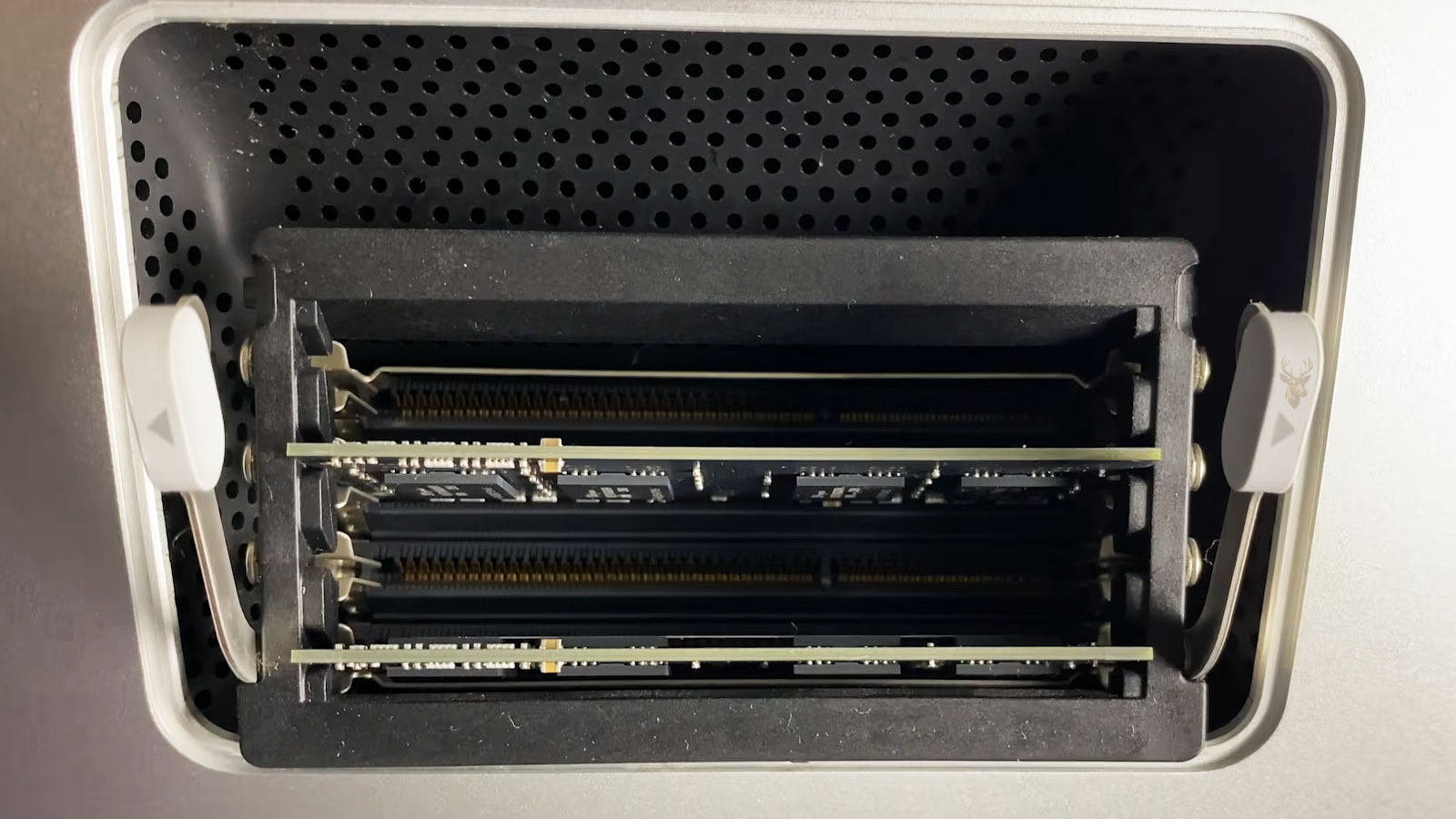
Understanding Computer Memory Beyond the Numbers
Memory specifications are often one of the first numbers people notice when comparing computers. A laptop advertised with 16 GB of RAM may immediately appear more powerful than one with 8 GB, while a desktop equipped with 32 GB may seem like the obvious choice simply because the number is larger. In practice, selecting the right amount of memory depends much more on how the computer is used than on achieving the highest possible specification.
Random Access Memory, commonly called RAM, serves as the computer’s temporary workspace. Whenever Windows loads, programs open, websites are viewed, or documents are edited, information is placed into memory so the processor can access it quickly. The amount of available RAM influences how efficiently the system can perform several tasks at the same time, but it is only one part of the overall performance picture.
Adding more memory can produce noticeable improvements under the right conditions. However, installing additional RAM in a computer that is already limited by another component may provide little benefit. Understanding what memory actually does helps determine whether an upgrade is likely to improve everyday performance.
What RAM Actually Does
Unlike a storage drive, RAM does not permanently store files. Instead, it temporarily holds the information that Windows and running applications need immediate access to. Because memory operates much faster than long-term storage devices, the processor can retrieve information with minimal delay while programs are actively running.
Every open application uses a portion of available memory. Web browsers, office software, email programs, photo editors, security software, and Windows services all compete for the same resource. As more applications are opened, memory usage gradually increases until the operating system must begin managing resources more aggressively.
- Windows system processes.
- Open applications.
- Web browser tabs.
- Background services.
- Temporary working data.
- Graphics and multimedia processing.
When sufficient memory is available, switching between applications usually feels smooth because the required information remains readily accessible. Limited memory, on the other hand, forces Windows to rely more heavily on storage devices for temporary data, which can significantly reduce responsiveness.
Why More RAM Is Not Always Better
Adding memory is often recommended as a universal solution for slow computers, but the reality is more nuanced. A computer already equipped with enough RAM for its typical workload may experience little or no noticeable improvement after installing additional modules. If the processor, storage device, or another component is the actual performance bottleneck, increasing memory alone cannot remove that limitation.
For example, replacing a mechanical hard drive with a solid-state drive often produces a greater improvement in everyday responsiveness than doubling the amount of memory. Likewise, correcting overheating or reducing unnecessary background software may have a much larger effect than installing more RAM.
Understanding which component is limiting performance helps ensure that upgrade decisions are based on actual system behavior rather than assumptions.
How Windows Uses Available Memory
Windows is designed to use available memory efficiently. Instead of leaving unused RAM empty, the operating system often stores recently accessed information in memory so that programs and files can reopen more quickly when needed. This behavior sometimes causes users to believe that Windows is consuming excessive memory when it is actually improving responsiveness.
As memory demand increases, Windows automatically decides which information should remain in RAM and which data can be moved temporarily to storage. This process allows the computer to continue operating even when memory becomes limited, although performance may decrease because storage devices cannot match the speed of physical RAM.
| Component | Primary Purpose |
|---|---|
| RAM | Temporary workspace for active programs. |
| Storage Drive | Permanent storage for Windows, applications, and personal files. |
| Processor | Executes instructions and calculations. |
| Graphics Hardware | Processes visual information for displays and graphics applications. |
Different Types of Computer Users
Not every computer owner places the same demands on their system. Someone who primarily browses the web and checks email uses memory very differently from a photographer editing large image files or a designer working with multiple professional applications simultaneously.
Understanding everyday usage patterns provides a better starting point for selecting an appropriate memory configuration than simply comparing specifications. The goal is not to install the largest possible amount of RAM, but rather to provide enough memory for the tasks the computer performs on a regular basis.
How Much Memory Is Enough?
The ideal amount of RAM depends on the tasks performed each day rather than following a single recommendation that applies to every computer. While some users rarely exceed a few gigabytes of memory usage, others may require considerably more because they work with demanding software or frequently multitask.
Instead of asking how much memory is considered “best,” it is often more useful to ask whether the existing amount allows the computer to perform everyday tasks comfortably without slowing down. If Windows and regularly used applications operate smoothly, installing additional RAM may provide little noticeable improvement.
| Typical Computer Use | General Memory Requirement |
|---|---|
| Email, web browsing, office documents | Modest memory requirements |
| Many browser tabs and multitasking | Moderate memory requirements |
| Photo editing and content creation | Higher memory requirements |
| Professional design, virtualization, large projects | Substantially higher memory requirements |
| Modern gaming together with background applications | Moderate to high memory requirements |
These examples are intended as general guidance rather than fixed rules. Software evolves continuously, and the amount of memory considered comfortable today may differ from future requirements.
Multitasking Increases Memory Demand
One application by itself may use only a modest amount of RAM, but modern computers rarely perform just one task at a time. It is common for a web browser, email client, office software, cloud synchronization service, security software, music player, messaging application, and several background processes to operate simultaneously.
As additional programs remain open, available memory gradually decreases. When physical RAM becomes limited, Windows begins moving less frequently used information to temporary storage. Although this allows work to continue, switching between applications may become noticeably slower because storage devices cannot match the speed of memory.
- Keeping dozens of browser tabs open.
- Running multiple office applications together.
- Editing photographs while streaming music.
- Video conferencing with several background programs.
- Using virtual machines or software development tools.
Can Too Much RAM Cause Problems?
Installing more memory than the computer can actually use does not normally create performance problems by itself. The operating system simply has additional memory available if future workloads require it. However, purchasing far more RAM than the computer will realistically use may not represent the most effective upgrade investment.
For example, a computer limited primarily by an aging mechanical hard drive or an overheating processor is unlikely to feel dramatically faster after doubling its memory. Identifying the actual performance bottleneck usually provides a better return than upgrading components based solely on specifications.
Memory Speed and Compatibility
Capacity is only one characteristic of RAM. Memory modules also differ in technology generation, operating speed, voltage, physical design, and compatibility with the motherboard. Installing memory that is incompatible with the computer may prevent the system from starting or may reduce stability.
Laptop and desktop computers often use physically different memory modules, and even computers that appear similar may require different specifications. Before purchasing new memory, confirming compatibility with the motherboard or manufacturer specifications helps avoid unnecessary returns and installation problems.
- Memory generation (such as DDR3 or DDR4).
- Operating speed supported by the motherboard.
- Physical module type.
- Maximum supported capacity.
- Number of available memory slots.
Matching these specifications is just as important as selecting the desired amount of memory.
Symptoms That May Suggest Limited Memory
Memory shortages usually produce gradual slowdowns rather than complete hardware failures. Recognizing these symptoms can help determine whether RAM deserves closer attention during troubleshooting.
| Observed Behavior | Possible Explanation |
|---|---|
| Programs pause when switching between windows. | Windows is moving data between RAM and storage. |
| Browser tabs reload after returning to them. | Memory resources are becoming limited. |
| Applications respond slowly while many programs are open. | Heavy multitasking is consuming available RAM. |
| General responsiveness decreases during busy workloads. | Memory demand may be approaching system limits. |
| Performance improves after closing several applications. | Available memory has increased. |
These symptoms do not automatically prove that additional RAM is needed, but they may indicate that memory usage should be evaluated together with storage performance, processor activity, and overall system health before deciding on an upgrade.
Before Purchasing Additional Memory
Upgrading RAM is generally straightforward, but taking a few minutes to verify compatibility beforehand can prevent unnecessary expense and installation problems. Even computers from the same manufacturer may support different memory capacities, speeds, or module types depending on the exact model.
- Identify the exact computer model or motherboard.
- Confirm the maximum supported memory capacity.
- Verify the correct memory technology, such as DDR3 or DDR4.
- Determine how many memory slots are available and whether they are already occupied.
- Decide whether adding memory or replacing existing modules is the better approach.
- Create a backup of important files before making hardware changes.
These simple checks reduce the chances of purchasing incompatible hardware and help ensure the upgrade proceeds smoothly.
When More RAM Will Not Solve the Problem
It is easy to assume that additional memory will solve every performance issue, but many slow computers are limited by completely different factors. A mechanical hard drive nearing the end of its useful life, excessive background software, overheating, failing storage devices, or outdated hardware may continue affecting performance regardless of how much RAM is installed.
For this reason, identifying the source of the slowdown before purchasing upgrades often produces better results. In many situations, improving storage performance or correcting another hardware issue provides a greater improvement than increasing memory capacity alone. Readers interested in understanding storage performance can also explore our article on SSD vs. Hard Drive: Is It Worth Upgrading?, which explains why storage technology often has a significant effect on overall responsiveness.
Memory Upgrades for Older Computers
Many older computers continue serving everyday needs successfully, especially when they are used for web browsing, office work, email, and similar tasks. If the system supports additional memory and regularly reaches its current limits, a RAM upgrade may help extend its useful life without replacing the entire computer.
Older systems, however, also have practical limitations. Motherboards may support only certain memory technologies or maximum capacities, making it important to verify compatibility before purchasing upgrade components. Balancing the cost of upgrades against the age and overall condition of the computer often leads to better long-term decisions.
Looking at the Entire System
Computer performance depends on several components working together rather than on memory alone. The processor performs calculations, storage devices load programs and files, graphics hardware processes visual information, and Windows coordinates these resources continuously. Improving one component while overlooking another limitation may produce only modest results.
When evaluating upgrade possibilities, considering the computer as a complete system usually provides a more accurate picture of where meaningful improvements can be made. This balanced approach helps avoid replacing parts that are already performing adequately while focusing attention on the components that genuinely influence everyday performance.
General information about evaluating computer hardware and upgrade options is also available on our PC Repair Services page, where different hardware components and common performance concerns are discussed from a broader perspective.
Choosing Memory That Matches Your Needs
The ideal amount of RAM is not determined by selecting the largest available number. Instead, it comes from matching the computer’s memory capacity to the work it performs every day. A system used primarily for browsing the web and creating documents has different requirements than one dedicated to professional content creation, software development, or advanced engineering applications.
Understanding how memory works makes upgrade decisions much easier because expectations remain realistic. Additional RAM can improve multitasking when memory is genuinely limited, but it should always be viewed as one part of the overall performance equation rather than a universal solution for every slow computer.
Taking the time to identify the actual performance bottleneck before purchasing upgrades often results in a computer that feels faster, operates more efficiently, and makes better use of the hardware already installed.











