
Why Laptops Become Too Hot and How Cooling Problems Develop
A laptop may feel warm during normal use, especially while installing updates, playing games, editing video, or running several applications at once. Heat becomes a concern when the computer grows unusually hot, the cooling fan remains loud for long periods, performance decreases, or the system begins freezing and shutting down unexpectedly.
Unlike desktop computers, laptops place the processor, graphics hardware, memory, storage, battery, and cooling system inside a compact enclosure. This design makes the computer portable, but it also leaves very little room for heat to escape. Even a small restriction in airflow can noticeably affect operating temperatures.
Overheating rarely begins without a reason. Dust accumulation, blocked ventilation, worn cooling fans, deteriorated thermal compound, demanding software, and internal hardware problems can all interfere with the computer’s ability to remove heat efficiently.
How a Laptop Cooling System Works
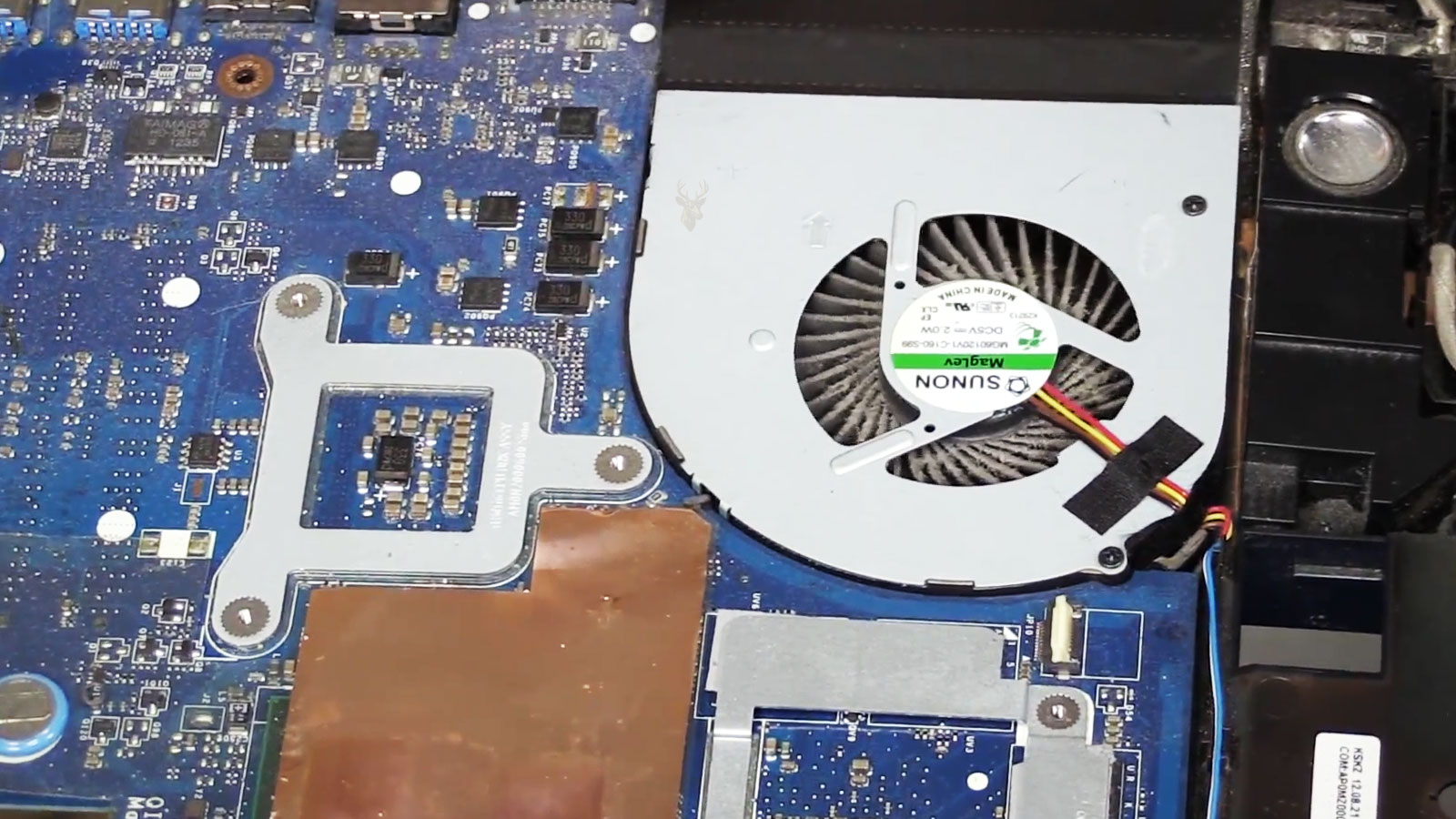
Most laptops use a combination of heat pipes, metal heat sinks, ventilation openings, and one or more cooling fans. Heat generated by the processor and graphics hardware travels through the heat pipe toward a finned radiator. The fan then moves cooler air through those fins and pushes warm air out of the enclosure.
The system depends on each part working correctly. If air cannot enter the laptop, the fan cannot move enough air. If dust blocks the radiator fins, heat remains trapped. If the thermal compound no longer transfers heat effectively, the processor may become hot even while the fan is operating normally.
- Air enters through ventilation openings.
- Heat moves away from the processor through a heat pipe.
- The cooling fan pushes air across the radiator fins.
- Warm air exits through the exhaust vent.
- Temperature sensors adjust fan speed according to system demand.
A failure or restriction anywhere in this path can raise temperatures throughout the computer.
Dust Gradually Restricts Airflow
Cooling fans continuously pull room air through the laptop. That air carries small amounts of dust, fabric fibers, pet hair, and other particles into the enclosure. Over time, this material collects around the fan and between the narrow radiator fins.
The accumulation may begin as a light coating and eventually form a dense layer that blocks the exhaust path. The fan may continue spinning normally, but the heated air can no longer leave the laptop efficiently.
- The fan becomes louder than it was previously.
- Warm air no longer flows strongly from the exhaust vent.
- The laptop becomes hot during ordinary tasks.
- Performance decreases after the computer has been running for a while.
- The system shuts down during demanding workloads.
Dust buildup develops gradually, which is why many users do not notice the change until temperatures become high enough to affect performance or stability.
Soft Surfaces Can Block the Air Vents
A laptop used on a bed, couch, pillow, blanket, or carpet may not receive enough air through its lower ventilation openings. These soft surfaces can press directly against the case and prevent the cooling fan from drawing in fresh air.
The problem may appear only under heavier workloads because the cooling system requires much more airflow when the processor or graphics hardware is operating at higher power. A laptop that remains stable on a desk may become noticeably hotter when used on a soft surface.
Using the computer on a firm, flat surface generally allows the ventilation openings to remain unobstructed. A properly designed laptop stand may also improve airflow by increasing the space beneath the computer.
Cooling Fans Wear Out
Laptop cooling fans contain small electric motors and bearings that operate for thousands of hours. As these parts age, the fan may begin spinning more slowly, producing unusual noises, stopping intermittently, or failing completely.
A fan problem does not always mean the fan has stopped entirely. A weakened fan may still rotate but fail to move enough air when the system becomes hot. In other cases, the fan may run correctly while the computer is cool and begin making noise only after it reaches higher speeds.
| Fan Behavior | Possible Meaning |
|---|---|
| Grinding or rattling noise | Worn bearings or physical obstruction |
| Fan starts and stops repeatedly | Electrical problem, obstruction, or failing motor |
| No airflow from the exhaust vent | Fan failure or blocked radiator |
| Fan remains at maximum speed | High temperatures or cooling inefficiency |
| Fan runs quietly but laptop overheats | Restricted airflow, sensor issue, or poor heat transfer |
Thermal Compound Can Deteriorate
The surfaces of a processor and heat sink may appear smooth, but microscopic gaps remain between them. Thermal compound fills those small spaces and allows heat to transfer more efficiently from the processor into the cooling assembly.
After years of heating and cooling cycles, thermal compound may dry, separate, or lose some of its original effectiveness. The cooling fan may still operate properly, but heat may not move away from the processor as efficiently as it once did.
Replacing thermal compound can help when deterioration is confirmed, but it should not be treated as a universal solution for every hot laptop. Dust, fan performance, heat-pipe condition, software load, and sensor readings should also be considered before deciding what maintenance is appropriate.
Demanding Software Produces More Heat
A laptop does not generate the same amount of heat during every task. Reading email or editing a document places relatively little demand on the processor, while gaming, video editing, software installation, file compression, and other intensive workloads require much more electrical power.
As processor activity increases, heat output rises quickly. The cooling fan responds by increasing its speed, and the exterior of the laptop may become noticeably warmer. This behavior can be normal as long as temperatures remain within the system’s intended operating range and performance remains stable.
- Games and three-dimensional applications
- Video editing and rendering
- Large software installations
- Antivirus scans
- File compression and extraction
- Operating several demanding programs simultaneously
Heat becomes more concerning when the computer struggles during tasks it previously handled normally or when temperatures remain high after the demanding program has been closed.
Graphics Hardware Can Add Significant Heat
Laptops equipped with dedicated graphics processors often generate considerably more heat than systems relying only on integrated graphics. The graphics processor may have its own section of the cooling assembly or may share heat pipes and radiator space with the main processor.
When both components operate heavily at the same time, the cooling system must remove heat from several sources within the same compact enclosure. Dust, poor airflow, or a weakening fan becomes much more noticeable under these conditions.
A laptop that overheats only during gaming may therefore have a cooling limitation that remains hidden during ordinary office work. The pattern helps identify whether the problem is related to workload, airflow, power delivery, or another component.
Background Processes May Keep the Processor Busy
Sometimes a laptop becomes hot even though the user is not running any obvious demanding software. Background processes may continue using processor resources while Windows appears idle. Updates, antivirus scans, indexing, synchronization utilities, and unwanted software can all increase activity without displaying a large visible window.
If processor usage remains high for long periods, the cooling system may behave as though a demanding program is running continuously. The fan stays active, battery life decreases, and the laptop remains warm even during light use.
- Windows updates installing in the background
- Search indexing
- Cloud file synchronization
- Antivirus or malware scans
- Software update utilities
- Unwanted background applications
Reviewing active processes can help determine whether the heat comes from normal workload or from software using resources unnecessarily.
Battery and Charging Problems Can Produce Heat
Charging naturally produces some warmth because electrical energy is being transferred into the battery while the laptop may also be operating. A healthy battery and charging system should manage this process without creating excessive temperatures.
A deteriorating battery, incompatible charger, damaged charging circuit, or loose connector may produce unusual heat around the battery compartment, charging port, or power adapter. This type of heat should not be confused with normal processor warmth because it may originate from a different section of the computer.
| Location of Heat | Possible Source |
|---|---|
| Near the exhaust vent | Processor or graphics workload |
| Near the battery compartment | Battery charging or battery deterioration |
| Around the charging connector | Loose connection or charging-circuit problem |
| Across the entire underside | Restricted airflow or sustained heavy workload |
| Power adapter becomes excessively hot | Adapter overload, damage, or incompatibility |
A swollen battery, chemical odor, case separation, or unusual heat near the battery should be treated seriously. Continuing to charge or use a visibly damaged battery may create additional safety risks.
Room Temperature Also Matters
A laptop cooling system can only work with the surrounding air available to it. In a very warm room, inside a parked vehicle, or near direct sunlight, the computer draws in air that is already hot. The cooling fan then has less ability to reduce internal temperatures.
High humidity, poor ventilation, and prolonged exposure to direct sunlight may also affect comfort and cooling efficiency. A laptop that operates normally indoors may become unstable in a much hotter environment even when no internal component has failed.
- Avoid leaving the laptop inside a hot vehicle.
- Keep the computer away from direct sunlight.
- Allow a hot laptop to cool before placing it inside a closed bag.
- Use the system in a reasonably ventilated environment.
- Do not block the exhaust vent with nearby objects.
Thermal Throttling Protects the Hardware
When temperatures rise, the processor can automatically reduce its operating speed. This behavior, known as thermal throttling, lowers heat output and helps protect the hardware from operating beyond safe limits.
Thermal throttling often explains why a laptop performs well when first turned on and becomes slower after several minutes. The computer has not necessarily lost processing capability; it is intentionally reducing performance because the cooling system cannot remove heat quickly enough.
- Games begin smoothly and later lose performance.
- Video rendering slows after the system becomes hot.
- The fan remains loud while processor speed decreases.
- Performance returns temporarily after the laptop cools.
Repeated throttling indicates that the cooling system, workload, or operating environment deserves attention. It should not be treated as a permanent solution to excessive heat.
Normal Warmth Versus Genuine Overheating
A warm laptop is not automatically overheating. Compact computers are designed to transfer some internal heat through the case, and certain areas may feel noticeably warmer during charging or demanding work.
Overheating becomes more likely when heat is accompanied by performance loss, loud or unusual fan behavior, unexpected shutdowns, repeated restarts, graphical problems, or instability that appears only after the laptop has been operating for a while.
| Normal Behavior | Possible Overheating |
|---|---|
| Moderate warmth during demanding tasks | Case becomes uncomfortably hot during light use |
| Fan speed increases temporarily | Fan remains at maximum speed continuously |
| Performance stays consistent | Performance decreases as temperature rises |
| Warm air exits the vent | Little airflow despite loud fan noise |
| System remains stable | Freezing, restarting, or shutting down |
Cleaning the Cooling System Safely
Cleaning accumulated dust can improve airflow, but the process should be approached carefully. Spraying compressed air through every opening without understanding the internal airflow path may simply move dust deeper into the cooling assembly instead of removing it. In some situations, excessive air pressure can also cause cooling fans to spin much faster than intended.
The most effective cleaning method depends on the laptop design. Some models provide easy access to the cooling fan, while others require partial disassembly before dust can be removed properly. Knowing how the cooling system is constructed helps determine the safest maintenance approach.
- Turn the laptop off before cleaning.
- Disconnect the charger and any external devices.
- Keep ventilation openings clear during normal use.
- Avoid inserting objects into the cooling fan.
- Use appropriate cleaning methods for the specific laptop model.
Small Symptoms Often Appear First
Overheating rarely develops overnight. Many laptops begin showing subtle warning signs long before shutdowns or hardware damage occur. Paying attention to these early changes often allows maintenance to be performed before temperatures become excessive.
A cooling fan that gradually becomes louder, warm air that feels weaker than before, or performance that slowly decreases during demanding work may all indicate that the cooling system is becoming less efficient.
| Early Warning Sign | Why It Deserves Attention |
|---|---|
| Fan noise gradually increases | Cooling system may be working harder than before. |
| Reduced airflow from the exhaust vent | Dust or restricted airflow may be developing. |
| Keyboard feels warmer during light use | Internal temperatures may be increasing. |
| Performance slowly decreases | Thermal throttling may already be occurring. |
| Occasional unexpected shutdowns | Cooling system should be evaluated promptly. |
Reducing Heat During Everyday Use
Completely eliminating heat is impossible because every electronic component generates some warmth while operating. The goal is to help the cooling system work efficiently so temperatures remain within the intended operating range.
- Use the laptop on a solid, level surface whenever possible.
- Keep ventilation openings unobstructed.
- Close applications that are no longer needed.
- Install operating system and driver updates from trusted sources.
- Clean dust before airflow becomes heavily restricted.
- Store the laptop in a clean environment whenever practical.
- Monitor unusual fan behavior instead of ignoring it.
These habits cannot prevent every cooling problem, but they can reduce unnecessary stress on the processor, graphics hardware, battery, and other internal components throughout the life of the computer.
When Internal Service May Be Needed
Some cooling problems cannot be corrected from the outside of the laptop. A blocked radiator, worn cooling fan, damaged heat pipe, deteriorated thermal compound, or internal obstruction may require disassembly before the source of the problem can be identified and corrected.
For laptops that continue overheating after basic maintenance, further inspection may be appropriate to determine whether the issue involves the cooling hardware itself or another condition causing excessive heat generation. Information about hardware-related cooling concerns is also available on our Laptop Repair Services page, where common internal laptop issues are discussed in greater detail.
Keeping Temperatures Under Control
Laptop cooling systems are designed to handle demanding workloads, but they depend on unrestricted airflow, clean cooling components, and properly functioning hardware. As dust accumulates and components age, temperatures may gradually increase until the computer begins reducing performance or shutting down to protect itself.
Recognizing the early warning signs, maintaining good airflow, and addressing cooling problems before they become severe can extend the useful life of the laptop while helping it operate more consistently. A computer that remains within its intended temperature range is generally quieter, more stable, and better prepared for everyday workloads.
Although every laptop produces heat, excessive temperatures should never be accepted as normal without understanding the reason behind them. A methodical approach to cooling maintenance often restores reliable operation while reducing unnecessary wear on the components that keep the computer running.











