
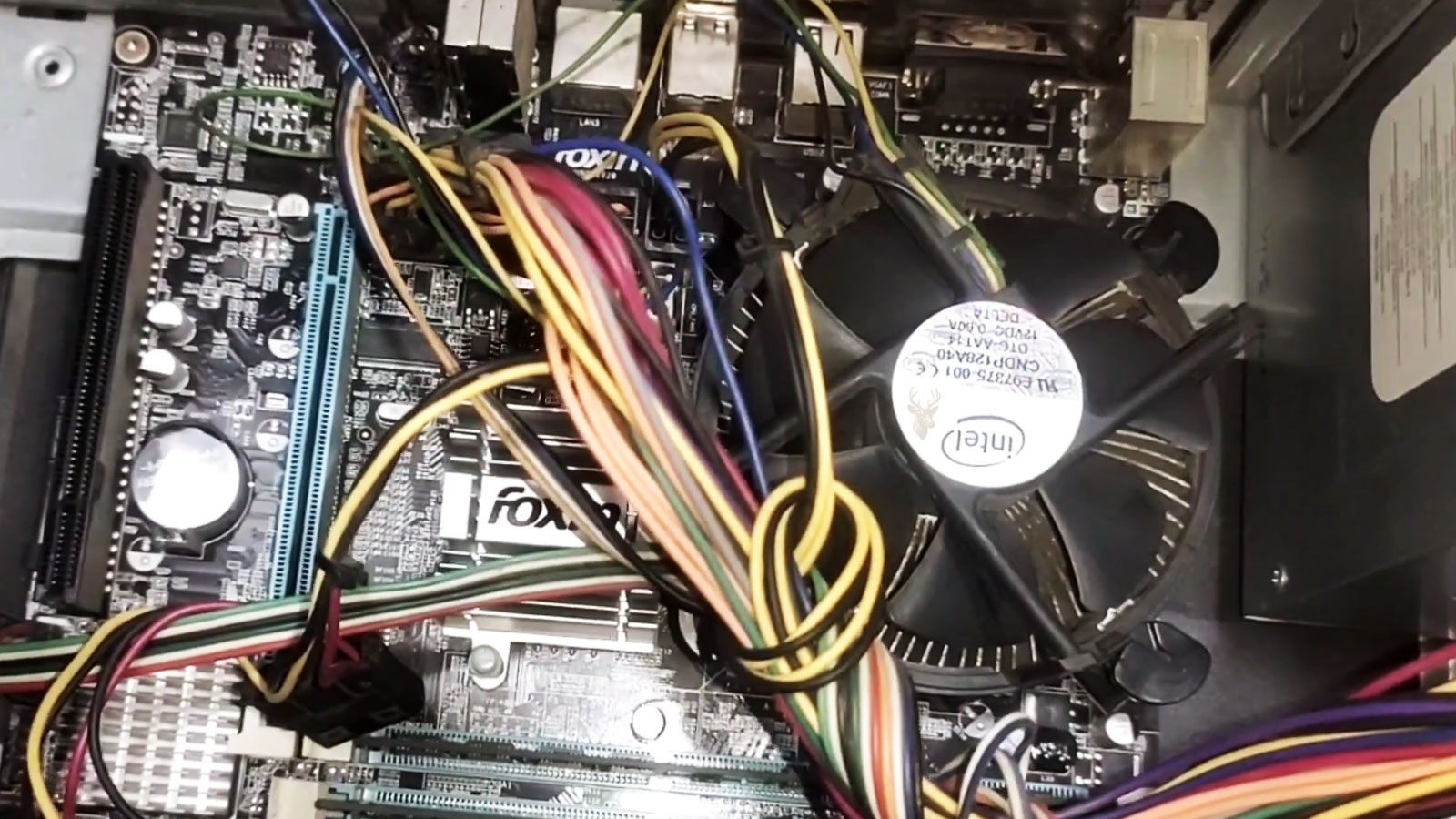
Understanding Why Unexpected Restarts Occur and What They Can Mean
A computer that suddenly restarts without warning can be frustrating and, in some situations, disruptive enough to interrupt work, school projects, online meetings, or important file transfers. Because the restart often happens unexpectedly, many people assume the operating system is at fault. In reality, Windows is only one of several possible causes.
Unexpected restarts may result from hardware problems, overheating, unstable electrical power, failing components, software conflicts, driver issues, or operating system errors. In some cases, the computer restarts to protect itself from damage. In others, the restart occurs because Windows detects an error serious enough that continuing operation could lead to data corruption or system instability.
Determining why the computer restarted requires looking beyond the restart itself. The events leading up to the problem often provide valuable clues that help narrow the list of possible causes.
Not Every Restart Means the Same Thing
Although two computers may appear to restart in exactly the same way, the underlying causes can be completely different. One system may restart only while playing games, another may restart shortly after reaching the Windows desktop, and another may restart only after several hours of continuous operation.
Recognizing when the restart occurs is often just as important as recognizing that it occurred. The timing helps determine whether the problem is more likely related to hardware, software, power management, or system temperature.
- Immediately after pressing the power button.
- While Windows is loading.
- After signing in.
- During games or demanding applications.
- Only after the computer becomes warm.
- Completely at random without any obvious pattern.
Keeping track of these details often makes diagnosis more efficient than simply describing the computer as “restarting by itself.”
Overheating Can Trigger Automatic Restarts
Modern processors contain protective mechanisms that monitor operating temperatures continuously. If temperatures rise beyond safe limits, the computer may automatically shut down or restart to reduce the risk of permanent hardware damage.
Restricted airflow, dust accumulation, failing cooling fans, deteriorated thermal compound, or blocked ventilation openings can all contribute to overheating. These problems often become noticeable while running demanding software because the processor and graphics hardware generate considerably more heat under heavy workloads.
- The computer restarts after several minutes of gaming.
- Cooling fans become unusually loud before the restart.
- The bottom of a laptop becomes very hot.
- Performance decreases before the restart occurs.
- The restart becomes less frequent after the computer cools down.
Heat-related restarts usually become more frequent over time if the underlying cooling problem is not corrected.
Windows Can Restart After Serious Errors
Windows is designed to recover from many software problems automatically, but certain critical errors require the operating system to stop running in order to protect system files and active data. Depending on the system configuration, Windows may display a blue screen error or restart automatically before the message can be read.
Although these events are often called “Blue Screen” errors, the underlying cause is not always Windows itself. Faulty hardware, unstable drivers, defective memory, storage problems, and other low-level issues can all trigger the operating system’s protective mechanisms.
| Restart Situation | Possible Direction for Diagnosis |
|---|---|
| Immediately after startup | Power, motherboard, or hardware initialization |
| During Windows loading | Operating system or driver problem |
| Only during heavy workloads | Overheating or power delivery |
| Randomly while idle | Power management, memory, or background software |
| After installing new hardware | Driver or compatibility issue |
Power Problems Can Produce Similar Symptoms
Unexpected restarts are not always caused by Windows or internal hardware failures. An unstable electrical connection, failing power adapter, damaged laptop charger, defective desktop power supply, or loose internal power connection may interrupt electrical power for only a fraction of a second. That brief interruption can be enough to force the computer to restart immediately.
Because these interruptions happen so quickly, they often leave no visible warning message. The computer simply restarts, making the event appear mysterious even though the underlying cause may be entirely electrical.
Faulty Drivers Can Trigger Unexpected Restarts
Drivers act as translators between Windows and the computer’s hardware. Every graphics card, storage controller, network adapter, printer, and many other devices rely on drivers to communicate correctly with the operating system. If a driver becomes corrupted, incompatible, or unstable, Windows may lose communication with critical hardware and restart unexpectedly.
Driver-related restarts often begin after installing new hardware, updating an existing driver, or performing a major Windows update. Although these situations do not always lead to problems, they provide useful clues when determining why the restarts began.
- Restarts began after updating Windows.
- A new graphics driver was recently installed.
- New hardware was added to the computer.
- The problem appeared after replacing a component.
- Device Manager reports hardware errors.
Memory Problems Can Produce Unpredictable Behavior
System memory stores information that Windows and running applications need immediate access to. If memory modules begin producing errors, the operating system may suddenly encounter invalid data, causing applications to crash or forcing the computer to restart in order to recover from a critical error.
Unlike some hardware failures that occur consistently, memory problems may appear only under certain conditions. The computer might operate normally for hours before restarting unexpectedly or may restart only while running software that uses a large amount of memory.
- Random blue screen errors.
- Applications closing unexpectedly.
- Restarts while using demanding software.
- Different error messages each time.
- Problems that cannot be reproduced consistently.
Storage Devices Can Also Cause Restarts
Windows depends on continuous communication with the storage device where the operating system is installed. If that communication becomes unreliable because of developing hardware problems, corrupted system files, or failing storage electronics, Windows may encounter errors that eventually lead to an unexpected restart.
Storage-related restarts are often accompanied by additional warning signs. Longer startup times, delayed file access, unusual clicking sounds from mechanical hard drives, repeated disk errors, or files that suddenly become unreadable may all suggest that the storage device deserves further evaluation.
Storage problems rarely improve on their own. If valuable files are involved, creating a current backup becomes increasingly important before additional troubleshooting is attempted.
Power Supplies and Power Adapters
Desktop and laptop computers receive electrical power differently, but both depend on stable voltage to operate reliably. Desktop systems rely on an internal power supply, while laptops use an external AC adapter together with an internal charging circuit. If either system becomes unstable, unexpected restarts may occur without warning.
Power-related problems sometimes become noticeable only when the computer is working harder than usual. A demanding application, video rendering, or modern game increases electrical demand throughout the system, making an aging power supply or adapter more likely to reveal an underlying weakness.
| Computer Type | Primary Power Source | Possible Restart Cause |
|---|---|---|
| Desktop | Internal power supply | Voltage instability or aging components |
| Laptop | AC adapter and charging circuit | Damaged adapter, charging circuit, or battery |
| Both | Wall outlet and electrical environment | Power interruptions or unstable electrical supply |
Looking for Patterns
One unexpected restart provides only limited information. Several restarts occurring under similar conditions often reveal useful patterns that narrow the diagnostic process. Paying attention to what the computer was doing immediately before each restart frequently provides more valuable information than the restart itself.
Questions such as whether the restart happens only during games, only after Windows updates, only while charging, or only after the computer becomes warm help identify where further investigation should begin. These observations often eliminate several possible causes before any hardware testing is performed.
Careful observation, combined with systematic testing, usually leads to a more accurate diagnosis than replacing parts based solely on symptoms. Understanding the pattern behind the restarts is often the key to finding a reliable long-term solution.
What to Check Before Replacing Hardware
Because unexpected restarts can result from many different causes, replacing hardware without testing may create additional expense while leaving the original problem unresolved. A basic review of recent changes and observable symptoms often provides a clearer starting point.
- Record when the restart occurs and what the computer was doing at the time.
- Check whether the problem began after installing software, hardware, drivers, or Windows updates.
- Listen for unusual fan, hard drive, or power supply noises.
- Observe whether the computer becomes excessively warm before restarting.
- Back up important files before performing extensive troubleshooting.
- Disconnect recently added external devices temporarily.
- Confirm that power cables and laptop adapters are connected securely.
These observations do not replace diagnosis, but they help separate likely causes from unrelated possibilities and reduce unnecessary part replacement.
Automatic Restart Can Hide Blue Screen Information
Windows may be configured to restart automatically after a serious system error. When this happens, a blue screen message may appear only briefly or may disappear before the user has enough time to read it. The computer then returns to the startup process, making the event look like an unexplained reboot.
Disabling automatic restart temporarily can make the error message easier to observe, but the displayed code should be treated as a clue rather than a complete diagnosis. The same error can sometimes be produced by defective memory, unstable drivers, storage problems, or other hardware faults.
When the Restart Happens During Gaming
Games and other demanding applications place a much heavier load on the processor, graphics hardware, memory, and power supply than ordinary web browsing or document work. A computer that operates normally during light use but restarts during gaming may be revealing a weakness that appears only under increased electrical and thermal demand.
- Graphics hardware may be overheating.
- The power supply may no longer provide stable output under load.
- Memory errors may appear only when more RAM is being used.
- A graphics driver may become unstable during demanding workloads.
- Dust may be restricting airflow through the cooling system.
The important detail is not simply that the computer restarted, but that the restart occurred under a repeatable workload. Reproducing the behavior under controlled conditions can make the cause easier to identify.
When Professional Evaluation Becomes Appropriate
Occasional restarts caused by a completed Windows update are usually easy to explain. Repeated restarts without warning are different, especially when they are accompanied by overheating, blue screens, storage errors, unusual noises, or failure to start reliably afterward.
A systematic evaluation can compare operating temperatures, power stability, memory behavior, storage health, drivers, and Windows error records before replacement parts are recommended. This approach is particularly useful when the computer contains important files or when several possible causes produce nearly identical symptoms.
Information about broader hardware and system diagnosis is available through our PC Repair Services page, but repeated restarts should still be treated as a symptom requiring investigation rather than as proof that one specific part has failed.
A Better Way to Approach Random Restarts
Random restarts are difficult to diagnose because the computer often returns to normal operation immediately afterward. That temporary recovery can make the problem appear less serious than it actually is. Repeated events, however, usually indicate that Windows, hardware, power delivery, or cooling is becoming unstable under certain conditions.
The most reliable approach is to document the pattern, protect important files, and evaluate the system methodically. Replacing parts based on assumptions may hide useful clues or introduce new variables, while careful testing can reveal whether the restart originates from software, storage, memory, temperature, power, or another component.
Once the actual cause is identified, the repair becomes much more focused. What initially appears to be a mysterious restart can often be traced to a specific condition that can be corrected, monitored, or prevented from causing further interruptions.











