
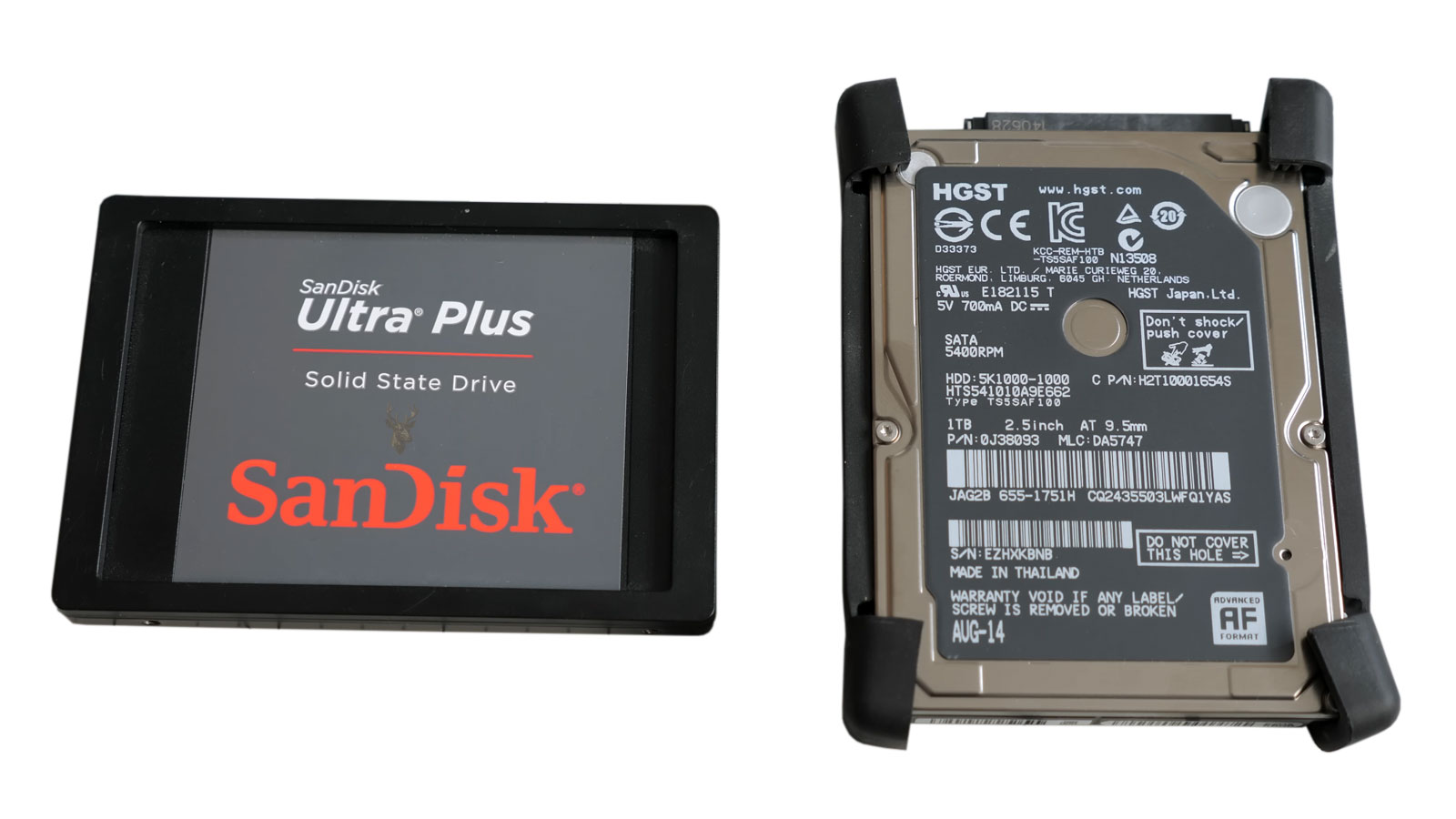
Understanding Two Different Approaches to Computer Storage
Few hardware upgrades have changed everyday computer performance as dramatically as the introduction of solid-state drives, commonly known as SSDs. For many years, traditional hard disk drives (HDDs) were the standard method of storing operating systems, programs, and personal files. Although they continue to provide large storage capacities at an affordable cost, SSD technology introduced a fundamentally different way of accessing information.
At first glance, both devices perform the same job. They store Windows, applications, documents, photographs, videos, and countless other files. The difference lies in how that information is stored and retrieved. Understanding those differences helps explain why two otherwise identical computers can feel completely different in everyday use.
For anyone considering a storage upgrade, comparing speed alone does not tell the complete story. Reliability, capacity, cost, intended use, and compatibility all influence whether replacing a traditional hard drive with an SSD is the right decision.
How a Traditional Hard Drive Stores Information
Hard disk drives use spinning magnetic platters to store digital information. Small read-and-write heads move across the surface of these platters while they rotate at high speed, locating the requested information whenever Windows or an application needs to access it.
This mechanical design has served computers for decades and remains capable of storing enormous amounts of information. Because the drive depends on moving parts, however, every request requires physical movement before data can be delivered to the operating system.
- Magnetic spinning platters.
- Moving read-and-write heads.
- Electric spindle motor.
- Large storage capacities.
- Lower cost per gigabyte.
These characteristics make hard drives an excellent choice for storing large collections of files, backups, photographs, and videos where maximum speed is not always the primary concern.
How Solid-State Drives Work
Unlike mechanical hard drives, solid-state drives contain no spinning platters or moving read-and-write heads. Instead, they store information electronically inside flash memory chips. Because data can be accessed almost instantly without waiting for mechanical movement, SSDs dramatically reduce the time required to start Windows, launch applications, and open files.
Removing mechanical components also makes SSDs quieter and more resistant to vibration during normal operation. This design contributes to faster responsiveness while reducing several types of mechanical wear commonly associated with traditional hard drives.
- No moving mechanical parts.
- Flash memory technology.
- Very fast access times.
- Lower operating noise.
- Improved resistance to vibration.
Why SSDs Feel Much Faster
Many users expect an upgraded computer to perform calculations faster after installing an SSD. In reality, the processor usually performs calculations at exactly the same speed as before. The improvement comes from reducing the amount of time spent waiting for information to be retrieved from storage.
Every time Windows starts, a document opens, or a program loads, thousands of files must be accessed from storage. Because an SSD retrieves these files much more quickly than a mechanical hard drive, the entire computer feels considerably more responsive even though the processor itself has not changed.
| Feature | Hard Drive (HDD) | Solid-State Drive (SSD) |
|---|---|---|
| Moving Parts | Yes | No |
| Noise | Audible during operation | Nearly silent |
| Access Speed | Mechanical movement required | Electronic access |
| Shock Resistance | More vulnerable | Generally better |
| Cost per Gigabyte | Lower | Higher (especially in 2013) |
Speed Is Only One Part of the Decision
Although faster performance attracts most attention, choosing between an SSD and a hard drive depends on several practical considerations. Available storage capacity, budget, the age of the computer, and the way the system is used all contribute to selecting the most appropriate solution.
Someone working primarily with office documents may have different priorities than a photographer storing thousands of high-resolution images or a business maintaining years of archived records. Understanding those everyday requirements often leads to a better upgrade decision than comparing specifications alone.
Comparing Everyday Performance
The difference between an SSD and a traditional hard drive becomes most noticeable during everyday tasks rather than specialized benchmarks. Activities performed repeatedly throughout the day such as starting Windows, opening programs, searching for files, and launching a web browser often feel significantly more responsive after upgrading to an SSD.
This improved responsiveness comes from the storage device delivering information much faster to the operating system. The processor, memory, and other hardware still perform their original functions, but they spend far less time waiting for files to become available.
- Windows reaches the desktop more quickly.
- Applications open with less waiting.
- Files and folders appear almost immediately.
- System updates often complete more efficiently.
- General navigation feels smoother throughout the day.
Capacity Versus Performance
Storage capacity has always been one of the strongest advantages of traditional hard drives. Large-capacity hard drives generally provide much more storage for the same investment, making them attractive for users who maintain extensive collections of photographs, videos, music, or archived documents.
Solid-state drives, particularly during the early years of widespread adoption, typically offered smaller capacities at a noticeably higher price. Choosing between the two technologies often involved balancing available storage against everyday performance.
For many users, selecting a smaller SSD for Windows and frequently used applications while storing larger files on a secondary hard drive became a practical compromise that combined the strengths of both technologies.
Reliability Is Different for Each Technology
Comparing reliability is not as simple as declaring one technology universally better than the other. Mechanical hard drives contain moving parts that naturally experience wear over time. Bearings, motors, and read-and-write heads operate continuously whenever the drive is active, making them susceptible to mechanical failure after years of normal use.
Solid-state drives eliminate these moving components but introduce different engineering considerations. Flash memory cells have a finite number of write cycles, and the electronic controller continuously manages how information is distributed throughout the drive to maximize its service life.
Both technologies can provide years of dependable operation when used under normal conditions. Neither should be viewed as a substitute for maintaining current backups of important files.
| Characteristic | Traditional Hard Drive | Solid-State Drive |
|---|---|---|
| Moving Parts | Yes | No |
| Shock Tolerance | Lower | Generally Higher |
| Operating Noise | Audible | Virtually Silent |
| Heat Generation | Moderate | Generally Lower |
| Storage Capacity | Usually Higher | Usually Lower (2013) |
Can an Older Computer Benefit from an SSD?
Many people assume that installing an SSD only makes sense in a brand-new computer. In reality, some of the most noticeable improvements occur when replacing an aging mechanical hard drive in an older laptop or desktop that is otherwise functioning well.
A processor released several years earlier may still provide adequate performance for everyday tasks. If the primary source of delay comes from storage access, replacing the hard drive with an SSD can dramatically improve the overall user experience without replacing the entire computer.
Before purchasing any upgrade, however, compatibility should always be verified. The storage interface, available physical space, and operating system requirements all influence whether an SSD can be installed successfully.
What About File Safety?
One common misconception is that upgrading to an SSD automatically protects information from loss. While SSDs remove several types of mechanical failures associated with traditional hard drives, they remain electronic storage devices that can still fail unexpectedly because of controller problems, electrical damage, firmware issues, or other electronic faults.
Regardless of the storage technology being used, maintaining current backups remains the most effective way to protect valuable information. Storage devices should always be viewed as temporary homes for data rather than permanent archives.
Whether the computer uses a hard drive or an SSD, keeping more than one copy of irreplaceable files continues to be one of the most important long-term maintenance practices.
When an SSD Upgrade Makes Sense
For many computers, replacing a mechanical hard drive with a solid-state drive is one of the most noticeable performance upgrades available. Systems that require several minutes to become usable after startup often respond much more quickly once Windows and frequently used applications are installed on an SSD.
Users who primarily browse the internet, work with documents, manage email, attend online meetings, or perform general office tasks often notice an immediate improvement in responsiveness. Faster startup times, shorter application loading times, and quicker file searches contribute to a computer that simply feels more enjoyable to use.
- Windows takes a long time to start.
- Programs require excessive time to open.
- The computer is otherwise functioning reliably.
- The existing hard drive still has adequate health but limits performance.
- The computer remains suitable for everyday tasks.
When a Hard Drive Still Makes Sense
Although SSDs offer significant performance advantages, traditional hard drives continue serving an important purpose. Large storage capacities remain more affordable, making hard drives a practical choice for long-term storage of photographs, videos, archived projects, backups, and other large collections of data.
Many desktop computers successfully combine both technologies by using an SSD for the operating system and frequently used applications while reserving a larger hard drive for long-term storage. This arrangement provides much of the performance advantage of an SSD without sacrificing storage capacity.
| If Your Priority Is… | Often the Better Choice |
|---|---|
| Maximum everyday responsiveness | SSD |
| Large storage capacity | Hard Drive |
| Quiet operation | SSD |
| Lowest cost per gigabyte | Hard Drive |
| Operating system and applications | SSD |
| Long-term file storage | Hard Drive or a secondary storage device |
Avoid Replacing Parts Before Identifying the Problem
Installing an SSD can dramatically improve a computer that is limited primarily by storage performance, but it will not correct every type of slowdown. Computers affected by overheating, insufficient memory, malware, failing hardware, or software corruption may continue experiencing problems after a storage upgrade if those issues remain unresolved.
This is why diagnosis should always come before purchasing replacement parts. Understanding why computers slow down over time helps determine whether storage performance is truly the limiting factor or whether another component deserves attention first.
Planning Before Upgrading
Before replacing any storage device, it is worth taking a few minutes to plan the upgrade carefully. Confirming compatibility, creating current backups, and deciding whether the existing operating system will be cloned or reinstalled helps reduce unnecessary complications during the upgrade process.
- Verify the storage interface supported by the computer.
- Confirm that the selected SSD provides adequate capacity.
- Create a current backup of important files.
- Decide whether to clone the existing drive or perform a clean installation.
- Make sure important software licenses and passwords are available before beginning.
- Allow sufficient time to complete the upgrade without interruptions.
Choosing the Right Storage for Your Needs
There is no single storage solution that is ideal for every computer or every user. Traditional hard drives continue offering excellent value when large storage capacity is the primary objective, while solid-state drives provide a level of responsiveness that has transformed the everyday computing experience for millions of users.
The best upgrade is the one that matches both the computer and the way it is used. Understanding the strengths of each technology makes it easier to invest in hardware that delivers meaningful improvements instead of simply replacing components based on advertising claims or specifications alone.
Whether upgrading an older laptop, extending the useful life of a desktop computer, or purchasing a new storage device for a future project, making an informed decision today helps ensure reliable performance for years to come.











