
Computer Repair Golden Glades
Practical Help For Unreliable Devices
Around the Golden Glades interchange, the area has a mix of commuters, apartment communities, nearby small businesses, local parks, and recognizable stops like Topgolf on NW 7th Avenue. It is a busy part of North Miami-Dade where people rely on their computers for work, school, scheduling, accounts, entertainment, and everyday communication.
For customers in this area, we provide computer repair service for laptops, desktops, Macs, gaming PCs, external drives, and work systems that are slow, damaged, unstable, or no longer starting correctly. The goal is to make the next step clear without turning a computer problem into a complicated process.
For Daily Use, Work, and Personal Files
A home laptop used for online classes has different needs than a desktop used for invoices, a Mac with personal photos, or a custom PC used after work. The right service path depends on how the machine is used, what stopped working, and whether important files are involved.
Some problems are simple performance issues. Others point to failing storage, damaged hardware, overheating, power trouble, software corruption, or a system that needs careful file handling before any repair decision is made.
A Simple Way To Move From Problem To Answer
The process starts with the symptoms. A laptop that will not charge, a desktop that freezes, a Mac stuck during startup, or a gaming system that shuts down under load should not be treated the same way. The first details help narrow the direction before time is spent on the wrong fix.
Power behavior, screen output, storage warnings, fan noise, heat, recent updates, physical damage, and file access all matter. Once the issue is clearer, the customer can decide whether the machine needs repair, cleanup, part replacement, data access, upgrade work, or replacement advice.
Explain What Changed
The most useful starting point is a short description of what happened, when it started, what appears on screen, and whether the device still turns on. Error messages, recent drops, liquid exposure, and failed updates should be mentioned early.
Check The Likely Cause
The cause may involve software, storage, power, cooling, memory, malware, physical damage, or a failing part. A focused check helps separate a simple issue from a deeper hardware or data problem.
Review The Options
After the problem is clearer, the next step should make sense for the device’s age, condition, value, and importance. Some systems are worth repairing, some are better upgraded, and others may need file recovery before anything else.
Repair Help For The Systems People Depend On
Around this part of North Miami-Dade, computers support a mix of work, school, family routines, entertainment, personal files, and small business needs. A laptop used between home and appointments, a desktop used for records, or a Mac used for creative and personal projects can each create a different problem when it stops working properly.
Service can cover the systems customers use every day, from basic performance problems to damaged hardware, storage issues, startup failure, and devices that need careful handling before a repair decision is made.
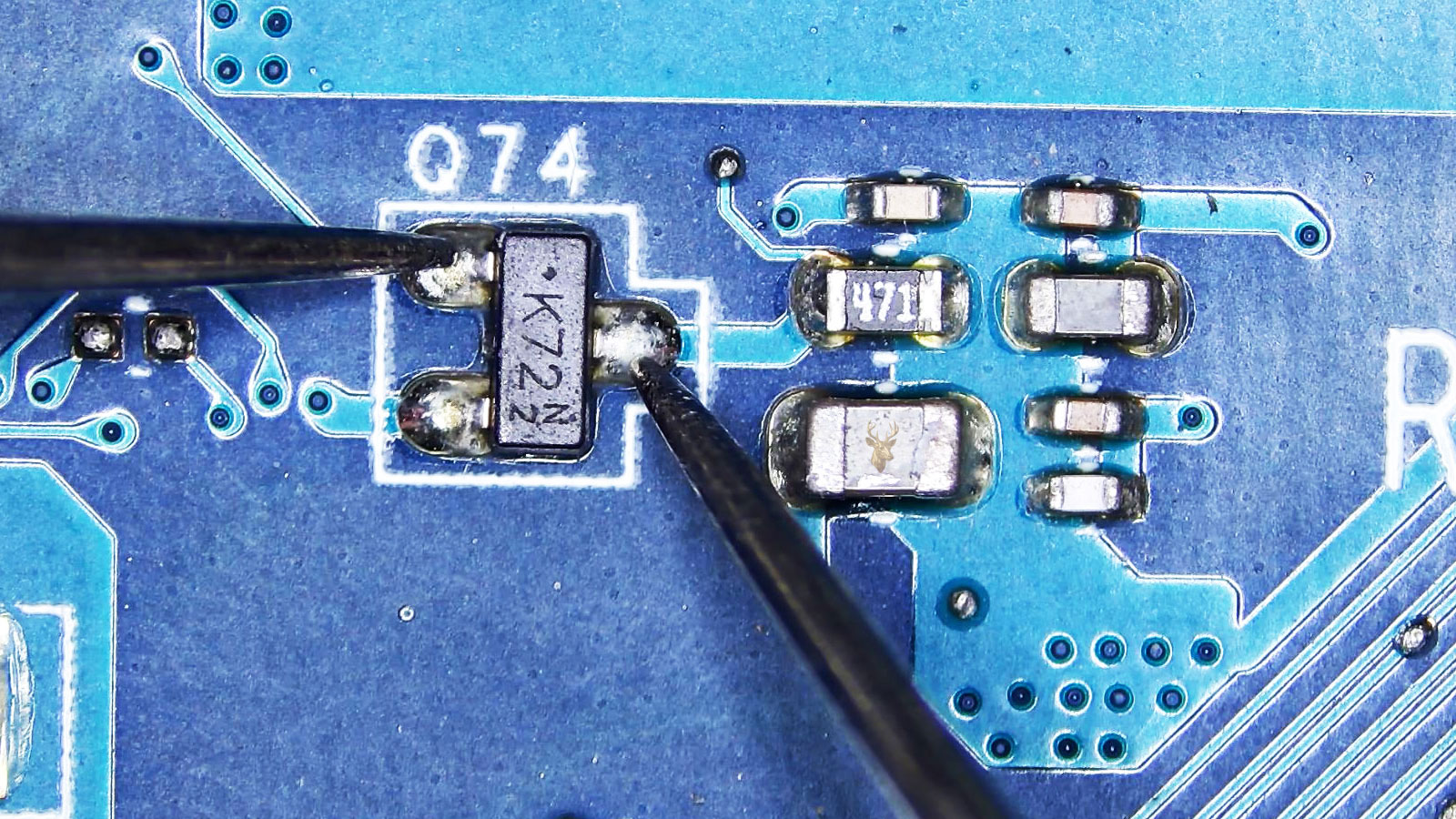
Board And Component Checks
Some failures begin below the obvious parts of the computer. Board and component checks can help identify problems involving power flow, damaged circuits, failed connectors, blown components, corrosion, or unstable internal behavior.
Virus And Malware Cleanup
Pop-ups, redirects, fake alerts, suspicious programs, browser hijacks, and unwanted background activity can make a computer difficult to trust. Cleanup may involve removing harmful software, correcting browser settings, and improving system behavior.
Operating System Repair
Windows or macOS problems can cause update loops, login errors, missing system files, broken settings, failed boot behavior, or programs that stop opening correctly. System repair can help restore normal use without guessing at the cause.
Wi-Fi And Internet Issues
Connection problems may involve weak Wi-Fi, dropped internet, adapter failure, driver issues, browser trouble, DNS errors, or a computer that connects inconsistently compared with other devices in the same home or office.
Data Transfer and Setup
When moving to another computer, important files, user folders, photos, documents, browser data, email settings, and basic programs may need to be transferred carefully. Setup work can make the new system easier to use from the beginning.
Upgrade Planning
Some computers do not need a full replacement. Memory, storage, cooling, software cleanup, or a better drive can make the machine more useful, depending on age, condition, parts compatibility, and how the customer uses it.
Warning Signs That Point To A Bigger Computer Problem
A computer often gives signs before it becomes unusable. Freezing, heat, fan noise, failed updates, charging trouble, screen flicker, storage warnings, and programs that take too long to open can all point to problems that should not be ignored.
These symptoms matter because the same visible problem can come from different causes. A slow system may have software clutter, failing storage, low memory, malware, overheating, or an operating system issue. Checking the cause helps avoid the wrong repair path.
Fake Security Warnings
Messages claiming the computer is infected, locked, expired, or being watched can be signs of scam pop-ups, browser hijacks, or unwanted software. These alerts should not be trusted without checking the system.
Storage Space Disappearing
A drive that keeps filling up without a clear reason may have temporary files, backups, hidden folders, update leftovers, user data buildup, or software creating large files in the background.
Wi-Fi Keeps Dropping
A computer that disconnects often, sees weak signal, forgets networks, or loads pages inconsistently may have adapter problems, driver issues, settings conflicts, malware, or hardware starting to fail.
Clicking Or Grinding Sounds
Clicking, grinding, scraping, or repeated spin-up sounds can be serious when they come from a hard drive. Continued use may increase the risk of file loss if the storage device is failing.
Login Or Password Failure
A system that rejects the password, freezes after login, loads a blank profile, or cannot reach the desktop may have account corruption, system damage, update failure, malware, or storage trouble.
Ports Stop Working
USB ports, charging ports, HDMI ports, audio jacks, or card readers that stop responding can point to driver problems, physical damage, board issues, dirt, wear, or internal connection failure.
A Practical Repair Visit Starts With What The Computer Is Doing
A good repair request starts with the condition of the device and the problem the customer is trying to solve. A laptop that will not charge, a desktop with business files, a Mac with startup trouble, and a gaming PC that shuts down under load each need a different path.
Useful details include what changed, when the issue started, whether the machine still turns on, what appears on the screen, and whether important files need to be protected. Those details help decide whether the computer needs a basic check, data handling, part review, cleanup, or deeper diagnostics.
Information That Helps Before Intake
The model, operating system, charger condition, recent updates, visible damage, liquid exposure, unusual sounds, passwords needed for testing, and backup status can all matter. A clear photo of an error message or damaged area can also make the request easier to understand.
Before any work begins, the customer should have a practical idea of what the next step may involve. Some machines need a simple correction, some need hardware attention, some need files recovered first, and others may not be worth repairing depending on age, condition, and cost.
Pickup, Delivery, And Intake Options For Busy Schedules
In an area shaped by commuting, transit stops, apartment communities, and nearby work routines, bringing in a computer is not always simple. A heavy desktop, damaged laptop, no-power system, or computer with important files may need planning before it is moved.
Pickup, delivery, or drop-off options can be discussed based on schedule, location, equipment type, and the condition of the device. The goal is to choose an intake option that fits the problem instead of making the customer guess what to do next.
Before Moving The Computer
Before transport, it helps to know whether the device has liquid damage, drive warnings, a cracked screen, loose parts, broken hinges, or files that are not backed up. These details can affect how the machine should be handled.
Accessories may also be part of the issue. A charger, power cable, docking station, external drive, monitor cable, or storage device should be mentioned when the problem involves charging, display output, startup behavior, or file access.
Service For Nearby Homes And Workspaces
Support can apply to homes, apartments, condos, small offices, workstations, and personal systems around the surrounding area. The type of computer, the urgency of the problem, and the condition of the hardware help determine the best way to proceed.
Availability can be confirmed before the equipment is moved. That keeps the request practical and helps make sure the device is handled in a way that matches the repair need, schedule, and risk to the files.
Questions About Computer Service In This Area
Before requesting help, customers often want to know what can be handled, what details are useful, and whether the problem is worth checking. A short explanation of the symptoms is usually enough to begin.
The best answer depends on the device, the condition of the hardware, the importance of the files, and how the computer is used day to day. A slow system, damaged laptop, non-starting desktop, Mac issue, or external drive problem may each need a different service path.
What types of computers can be checked?
Laptops, desktops, all-in-one systems, Macs, gaming PCs, workstations, and external drives can be reviewed based on the symptoms. Common requests involve startup failure, slow performance, charging trouble, screen damage, overheating, storage warnings, file access, and cleanup.
What should I explain first?
Helpful details include what changed, when the issue started, the device model, whether it still turns on, what appears on the screen, and whether important files are stored on the machine. Error messages, recent updates, drops, spills, and unusual sounds should also be mentioned.
Can a slow computer be improved?
Many slow computers can be improved, but the cause should be checked first. The problem may come from software clutter, low memory, overloaded storage, malware, heat, old hardware, or a failing drive. The right fix depends on what is actually slowing the system down.
Can pickup or delivery be arranged?
Pickup or delivery may be available depending on schedule, location, equipment type, and the condition of the device. Heavy desktops, damaged laptops, and systems with important files may need specific handling instructions before they are moved.
What if the computer has important files?
Important files should be mentioned before any repair decision is made. A computer with drive warnings, failed startup, liquid exposure, or physical damage may need careful handling to avoid making file recovery harder.
Is every repair worth doing?
No. Some computers are worth repairing, some are better upgraded, and others may be too old or damaged to justify the cost. The device’s age, condition, parts availability, file value, and expected use all matter.
Get A Clear Next Step For A Problem Computer
A computer that freezes, overheats, runs slowly, loses power, fails to start, shows storage warnings, or has damaged hardware can interrupt work, school, personal accounts, business tasks, and daily routines. The right next step may be a check, cleanup, part review, data access, upgrade, or repair decision.
Service is available for customers in this area who need help with laptops, desktops, Macs, gaming PCs, external drives, and small office systems. The next step is to describe the problem, confirm the service option, and move forward with the type of handling that fits the device.